> ## Documentation Index
> Fetch the complete documentation index at: https://docs.blackbox.ai/llms.txt
> Use this file to discover all available pages before exploring further.
# Getting started
Welcome to BLACKBOX CLI!
This quickstart guide will have you using AI-powered coding assistance in just a few minutes. By the end, you'll understand how to use BLACKBOX CLI for common development tasks.
## Before you begin
Make sure you have:
* A terminal or command prompt open
* A code project to work with (optional)
* A [BLACKBOX AI](https://app.blackbox.ai) account to login
## 1. Install BLACKBOX CLI
##### For Unix/Linux/macOS (Bash)
```bash theme={"theme":{"light":"github-light-default","dark":"github-dark-default"}}
curl -fsSL https://blackbox.ai/install.sh | bash
```
##### For Windows (PowerShell)
```bash theme={"theme":{"light":"github-light-default","dark":"github-dark-default"}}
iex (irm https://blackbox.ai/install.ps1)
```
##### If you get an execution policy error on Windows
To fix this, run the following command first in the same PowerShell session:
```powershell theme={null} theme={"theme":{"light":"github-light-default","dark":"github-dark-default"}}
Set-ExecutionPolicy -Scope Process -ExecutionPolicy Bypass
```
Then re-run the install command:
```bash theme={"theme":{"light":"github-light-default","dark":"github-dark-default"}}
iex (irm https://blackbox.ai/install.ps1)
```
## 2. Configure BLACKBOX CLI
BLACKBOX CLI requires configuration before first use. Use the configure command to set up your providers:
```bash theme={"theme":{"light":"github-light-default","dark":"github-dark-default"}}
blackbox configure
# You'll be prompted to configure providers and enter your API key on first use
```
##### Select Configuration
Select the configuration that you wish to change. For the initial setup, select **Configure Providers**.
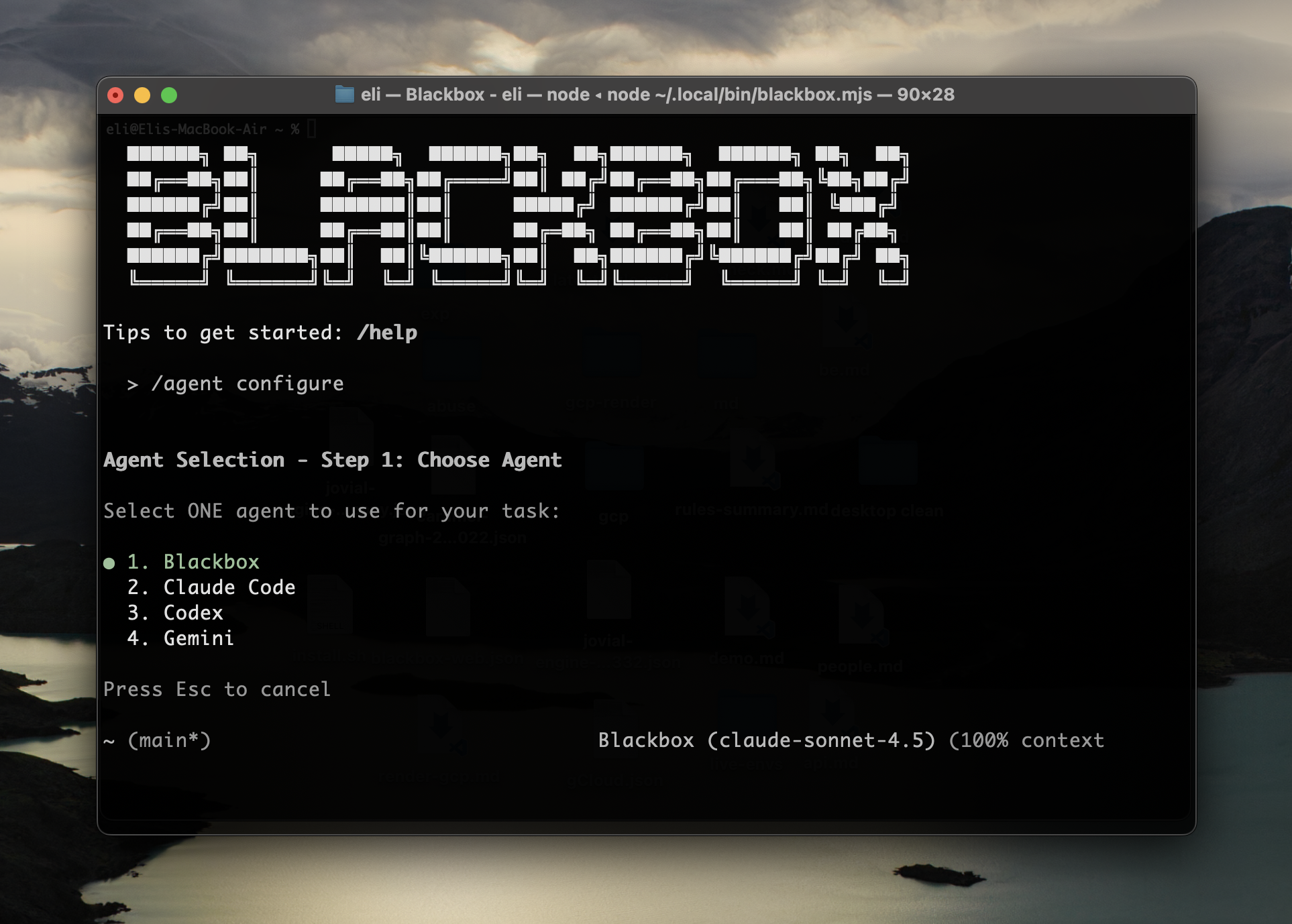
##### Choose Model Provider
Select your preferred AI model provider from the available options. BLACKBOX CLI supports multiple agents including:
**Windows Native Users**: On Windows (PowerShell), only **Blackbox** and **Claude** agents are available. To unlock all other agents (Codex, Gemini, Goose, OpenCode, Qwen), run Blackbox CLI in **WSL (Windows Subsystem for Linux)**.
**Available Agents:**
* **Blackbox**: BLACKBOX AI's native models (Available on all platforms)
* **Claude**: Anthropic's Claude models (Available on all platforms)
* **Codex**: OpenAI's specialized programming models (WSL required on Windows)
* **Gemini**: Google's multimodal models (WSL required on Windows)
* **Goose**: Full access to all Blackbox CLI models (WSL required on Windows)
* **OpenCode**: Complete model support (WSL required on Windows)
* **Qwen**: All Blackbox CLI models (WSL required on Windows)
All agents work with a single BLACKBOX API key for easy configuration.
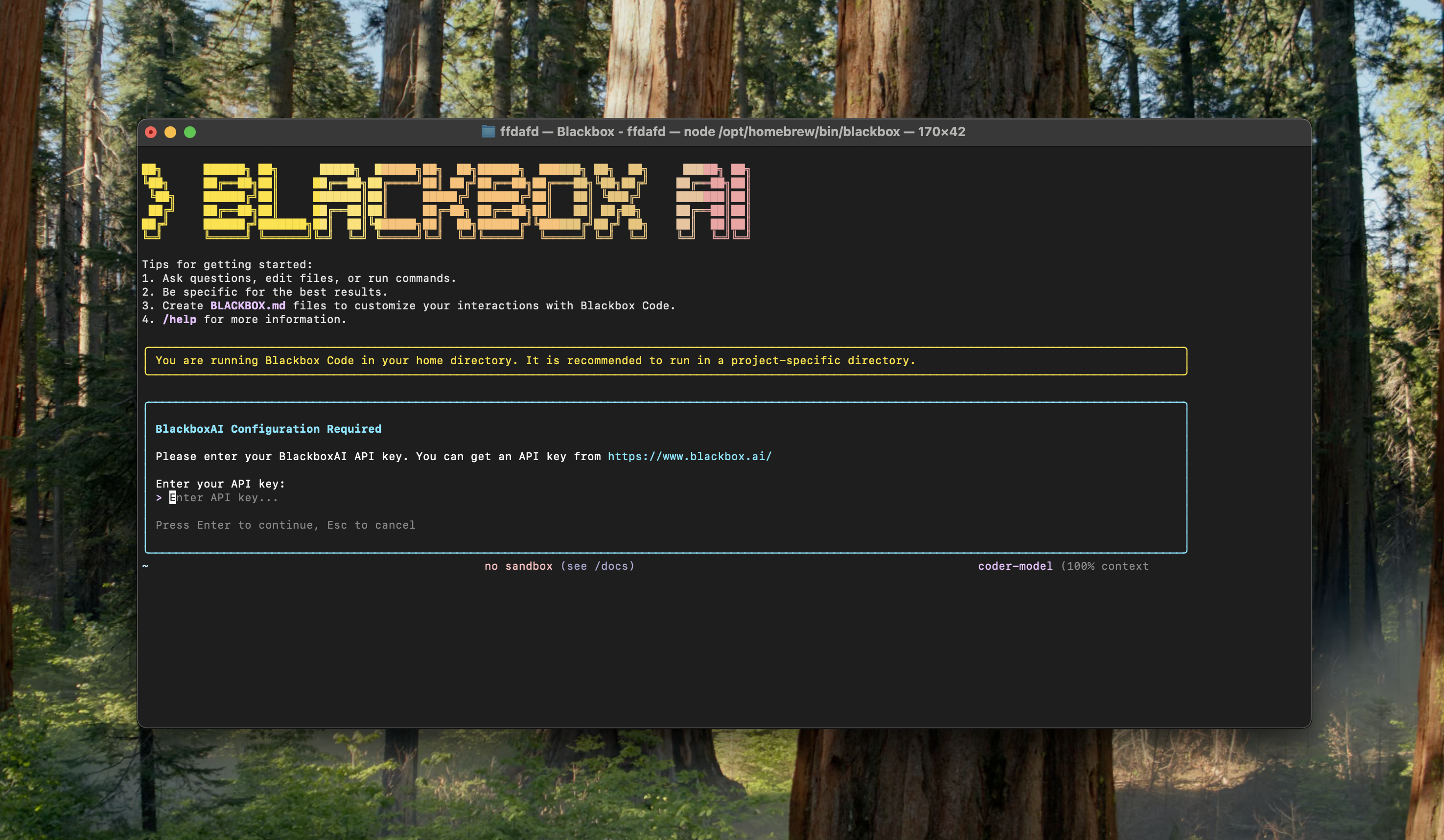
 ##### Enter API Key
Provide your BLACKBOX API key when prompted. You can get your API key from the [BLACKBOX Dashboard](https://app.blackbox.ai/dashboard).
* Navigate to your dashboard
* Copy your API key
* Paste it in the terminal when prompted
##### Enter API Key
Provide your BLACKBOX API key when prompted. You can get your API key from the [BLACKBOX Dashboard](https://app.blackbox.ai/dashboard).
* Navigate to your dashboard
* Copy your API key
* Paste it in the terminal when prompted
 **Windows Users with Claude Code**: If you selected Claude agent on Windows, you need Git Bash installed to run Claude Code properly. Check if Git Bash is installed by running `git --version` in PowerShell. If not installed, run:
```powershell theme={"theme":{"light":"github-light-default","dark":"github-dark-default"}}
winget install Git.Git
```
After installation, restart your terminal and proceed with the configuration.
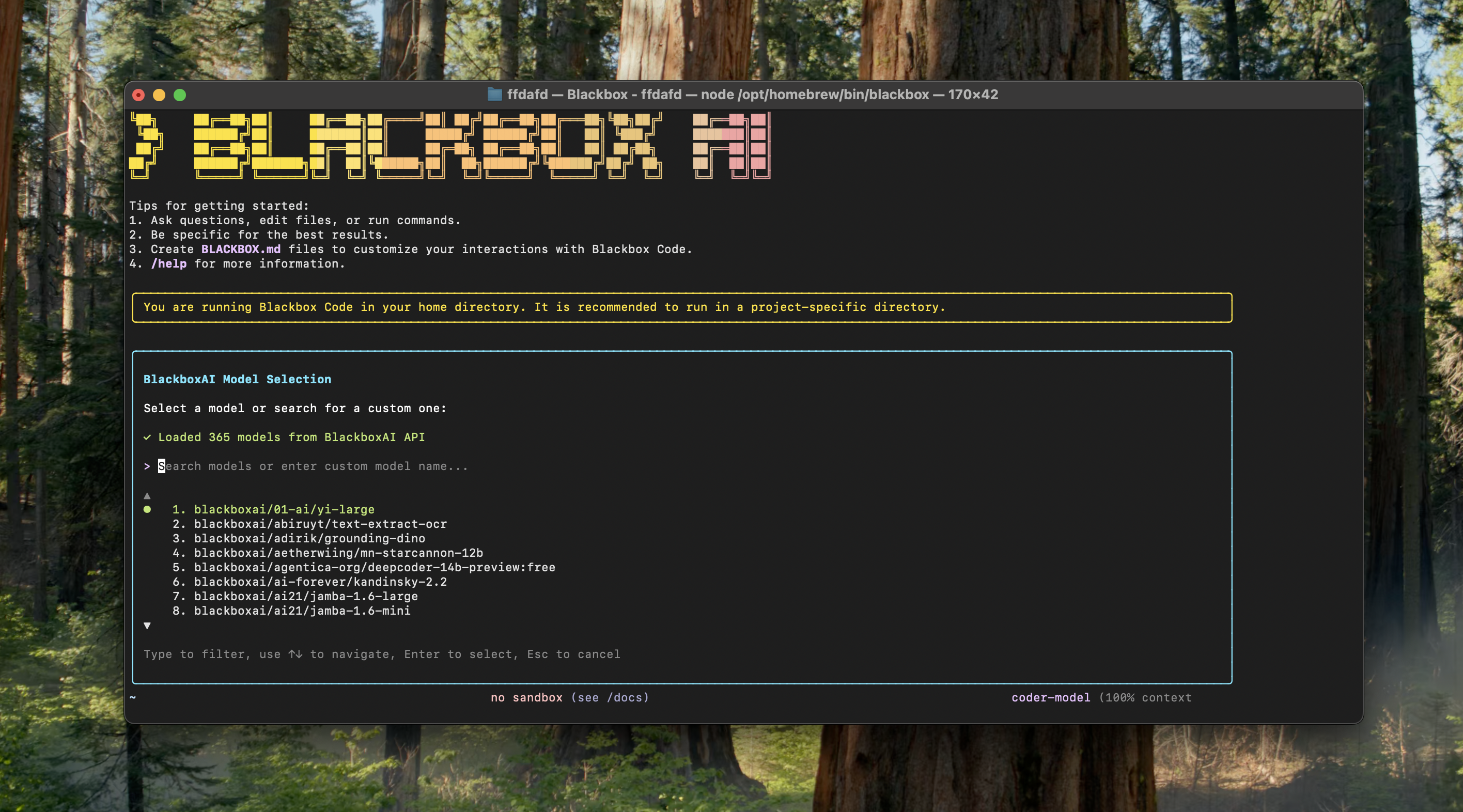
### Select Your Model
Choose the specific AI model you want to use from your chosen provider. You can select from the best closed-source or open-source models available. Look at the full list of BLACKBOX AI supported models [Here](/api-reference/models/chat-models#available-chat-models).
**Windows Users with Claude Code**: If you selected Claude agent on Windows, you need Git Bash installed to run Claude Code properly. Check if Git Bash is installed by running `git --version` in PowerShell. If not installed, run:
```powershell theme={"theme":{"light":"github-light-default","dark":"github-dark-default"}}
winget install Git.Git
```
After installation, restart your terminal and proceed with the configuration.
### Select Your Model
Choose the specific AI model you want to use from your chosen provider. You can select from the best closed-source or open-source models available. Look at the full list of BLACKBOX AI supported models [Here](/api-reference/models/chat-models#available-chat-models).
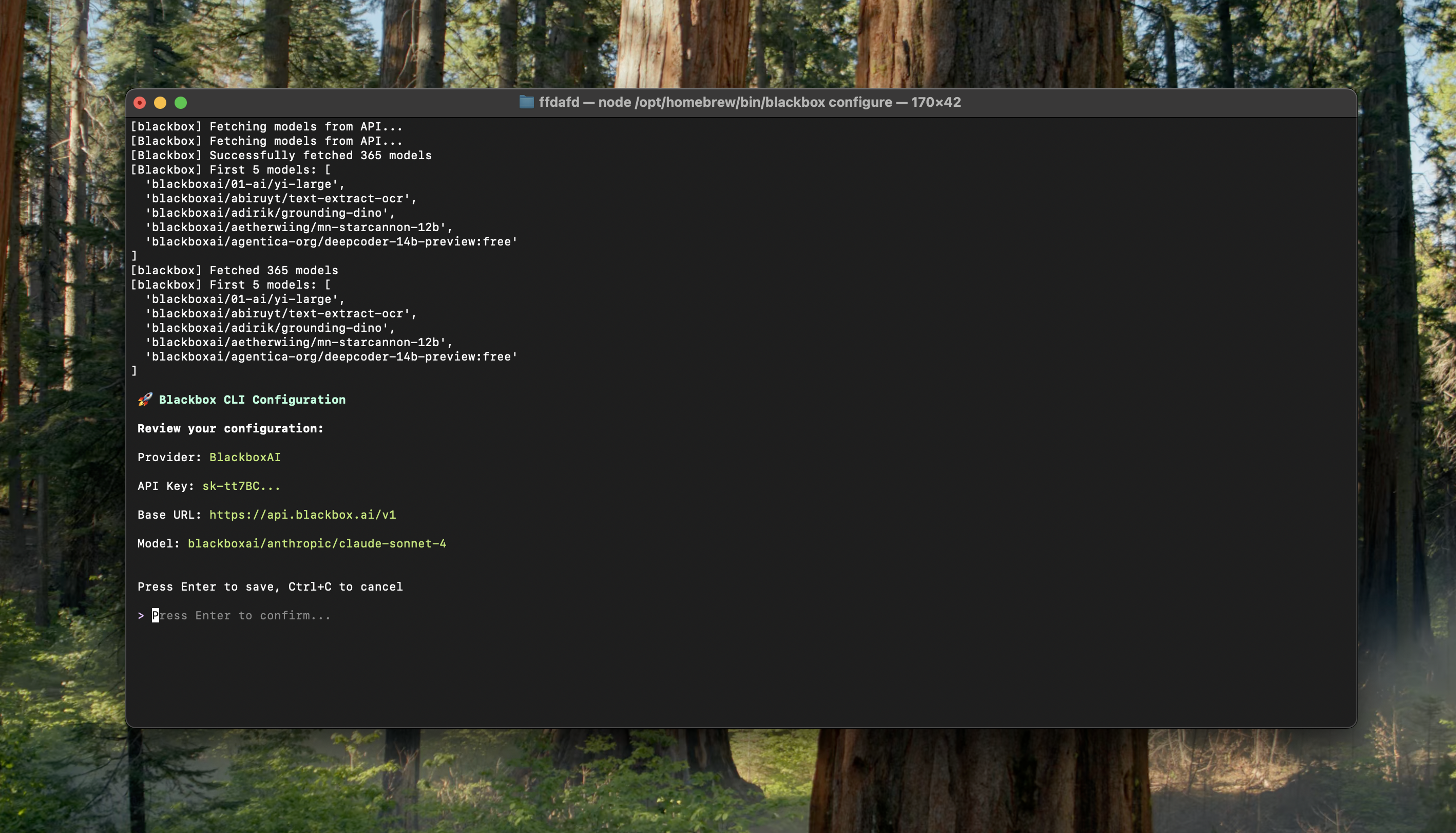 You can reconfigure your settings at any time by running `blackbox configure` again.
##### Update BLACKBOX CLI
BLACKBOX CLI keeps you up-to-date with the latest features and improvements.
##### Automatic Updates (Default)
For versions **0.1.1 and newer**, BLACKBOX CLI automatically checks for and installs updates when you start a session:
```bash theme={"theme":{"light":"github-light-default","dark":"github-dark-default"}}
blackbox
```
**Update Manually:**
```bash theme={"theme":{"light":"github-light-default","dark":"github-dark-default"}}
blackbox update
```
##### **For Older Versions**
If you're using an older version (before 0.1.1), you must manually update using:
##### For Unix/Linux/macOS (Bash)
```bash theme={"theme":{"light":"github-light-default","dark":"github-dark-default"}}
curl -fsSL https://blackbox.ai/install.sh | bash
```
##### For Windows (PowerShell)
```bash theme={"theme":{"light":"github-light-default","dark":"github-dark-default"}}
iex (irm https://blackbox.ai/install.ps1)
```
**Recommended**: Keep automatic updates enabled to ensure you always have the latest features, security patches, and performance improvements.
After any update, start a new session with `blackbox` to see the welcome screen with information about new features and improvements.
## 3. Start your first session
Open a new terminal window and start an interactive chat session:
```bash theme={"theme":{"light":"github-light-default","dark":"github-dark-default"}}
blackbox
```
You can reconfigure your settings at any time by running `blackbox configure` again.
##### Update BLACKBOX CLI
BLACKBOX CLI keeps you up-to-date with the latest features and improvements.
##### Automatic Updates (Default)
For versions **0.1.1 and newer**, BLACKBOX CLI automatically checks for and installs updates when you start a session:
```bash theme={"theme":{"light":"github-light-default","dark":"github-dark-default"}}
blackbox
```
**Update Manually:**
```bash theme={"theme":{"light":"github-light-default","dark":"github-dark-default"}}
blackbox update
```
##### **For Older Versions**
If you're using an older version (before 0.1.1), you must manually update using:
##### For Unix/Linux/macOS (Bash)
```bash theme={"theme":{"light":"github-light-default","dark":"github-dark-default"}}
curl -fsSL https://blackbox.ai/install.sh | bash
```
##### For Windows (PowerShell)
```bash theme={"theme":{"light":"github-light-default","dark":"github-dark-default"}}
iex (irm https://blackbox.ai/install.ps1)
```
**Recommended**: Keep automatic updates enabled to ensure you always have the latest features, security patches, and performance improvements.
After any update, start a new session with `blackbox` to see the welcome screen with information about new features and improvements.
## 3. Start your first session
Open a new terminal window and start an interactive chat session:
```bash theme={"theme":{"light":"github-light-default","dark":"github-dark-default"}}
blackbox
```
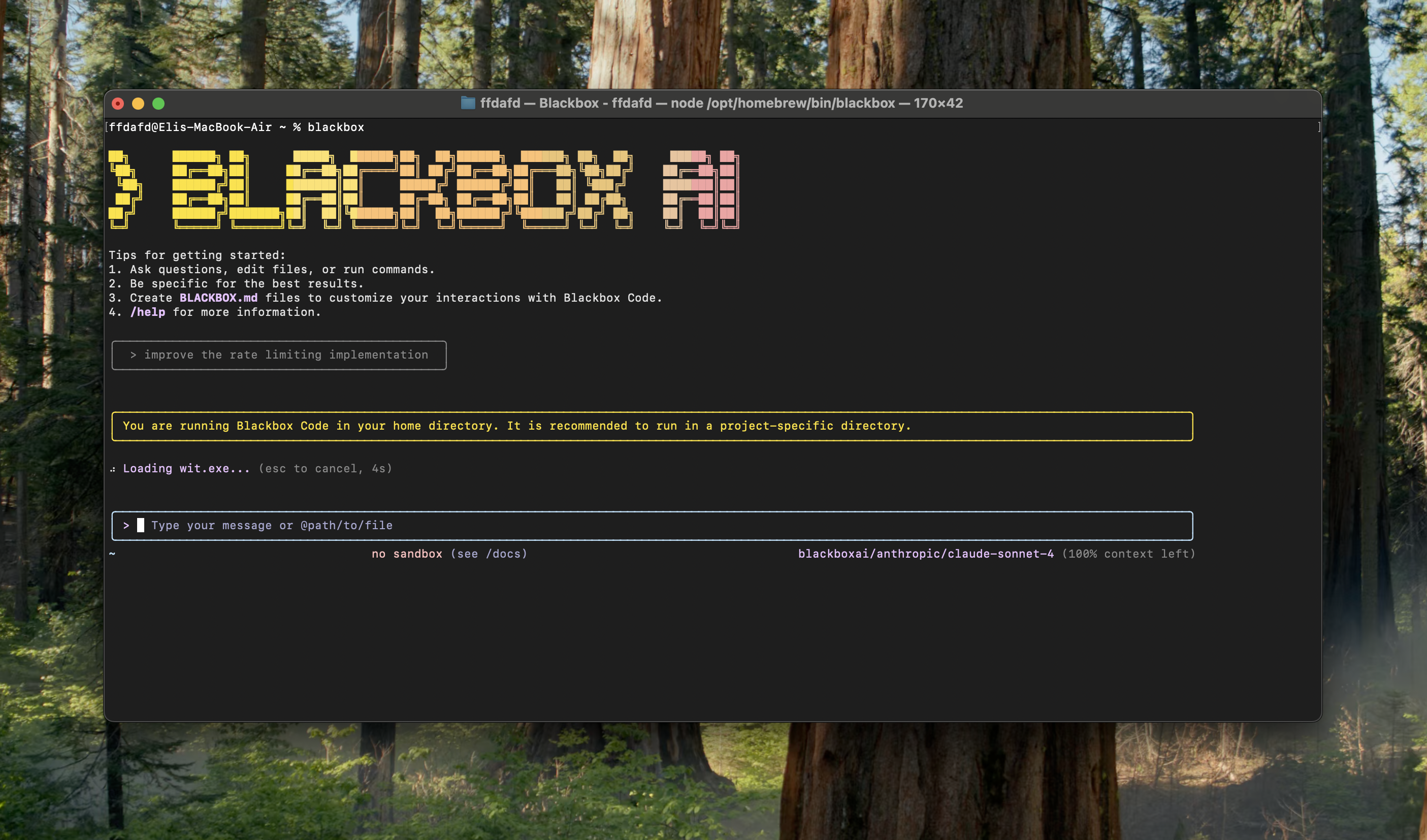 You'll see the BLACKBOX CLI prompt ready for your commands:
```
BLACKBOX CLI is ready!
Press Ctrl + C to quit.
```
After configuration, your settings are stored on your system. You can start new sessions or resume previous ones using `blackbox session`.
## 4. Ask your first question
Let's start with exploring BLACKBOX CLI's capabilities. Try one of these commands:
```
> what can you help me build today?
```
```
> show me what programming languages you support
```
If you're in an existing project, you can ask about your codebase:
```
> analyze this project and tell me what it does
```
```
> what files are in this directory?
```
```
> help me understand the project structure
```
You can also ask for project ideas and guidance:
```
> suggest a beginner-friendly web development project
```
```
> what's the best way to structure a Python API project?
```
BLACKBOX CLI reads your files as needed - you don't have to manually add context. It can analyze your entire project structure and provide intelligent assistance.
## 5. Create your first project
Let's start by creating a simple project from scratch:
```
> create a simple todo list web app using HTML, CSS, and JavaScript
```
```
> build a basic calculator app with a clean interface
```
```
> create a personal portfolio website template
```
BLACKBOX CLI will:
1. Create the necessary files and folders
2. Write the complete code for your project
3. Set up proper file structure
4. Provide instructions for running the project
BLACKBOX CLI can create complete projects from scratch, including all necessary files, dependencies, and configuration.
## 6. Make code improvements
Now let's enhance existing code. Try these improvement tasks:
```
> add responsive design to my website
```
```
> improve the styling of my todo app with modern CSS
```
```
> add form validation to my contact form
```
```
> optimize my JavaScript code for better performance
```
BLACKBOX CLI will:
* Analyze your existing code
* Suggest and implement improvements
* Maintain code functionality while enhancing features
* Explain the changes made
## 7. Debug and troubleshoot
BLACKBOX CLI excels at finding and fixing issues:
```
> my website isn't displaying correctly on mobile devices - fix it
```
```
> there's an error when I click the submit button - debug this
```
```
> my CSS styles aren't applying properly - help me fix this
```
```
> optimize my code to load faster
```
BLACKBOX CLI will:
* Identify the root cause of issues
* Provide detailed explanations
* Implement fixes automatically
* Test solutions to ensure they work
## 8. Explore advanced features
Discover more powerful capabilities of BLACKBOX CLI:
**Advanced Project Creation**
```
> create a full-stack e-commerce website with user authentication
```
```
> build a REST API with database integration and testing
```
**Code Generation and Automation**
```
> generate unit tests for all my functions
```
```
> create a deployment script for my web application
```
**Integration and Setup**
```
> set up a development environment with hot reloading
```
```
> integrate a payment system into my e-commerce site
```
**Remember**: BLACKBOX CLI is your AI-powered terminal assistant. Describe what you want to achieve in natural language, and it will handle the technical implementation.
## Essential commands
Here are the most important commands for daily use:
| Command | What it does | Example |
| -------------------- | -------------------------------- | ------------------------------------ |
| `blackbox session` | Start interactive chat session | `blackbox session` or `blackbox s` |
| `blackbox configure` | Configure settings and providers | `blackbox configure` |
| `blackbox project` | Open last project directory | `blackbox project` or `blackbox p` |
| `blackbox projects` | List recent project directories | `blackbox projects` or `blackbox ps` |
| `blackbox run` | Execute commands from file | `blackbox run instructions.txt` |
| `blackbox info` | Display system information | `blackbox info` |
| `blackbox update` | Update CLI to latest version | `blackbox update` |
| Ctrl+C | Exit interactive session | `exit` |
## Pro tips for beginners
Instead of: "fix the bug"
Try: "fix the login bug where users see a blank screen after entering wrong credentials"
Break complex tasks into steps:
```
> 1. create a landing page with hero section and navigation
```
```
> 2. add a contact form with email validation
```
```
> 3. make the entire site mobile-responsive
```
Begin with manageable projects and build complexity:
```
> create a simple weather app that shows current conditions
```
```
> build a basic blog template with multiple pages
```
Learn while you build:
```
> explain how this CSS flexbox layout works
```
```
> teach me about JavaScript event handling while building this feature
```
## What's next?
Now that you've learned the basics, explore more advanced features:
Explore all capabilities and use cases
See practical examples and workflows
## Getting help
* **Natural Language**: Simply ask "how do I..." or "help me with..."
* **Documentation**: Browse these guides for comprehensive information
* **Dashboard**: Visit your [BLACKBOX Dashboard](https://app.blackbox.ai/dashboard) for account management
You'll see the BLACKBOX CLI prompt ready for your commands:
```
BLACKBOX CLI is ready!
Press Ctrl + C to quit.
```
After configuration, your settings are stored on your system. You can start new sessions or resume previous ones using `blackbox session`.
## 4. Ask your first question
Let's start with exploring BLACKBOX CLI's capabilities. Try one of these commands:
```
> what can you help me build today?
```
```
> show me what programming languages you support
```
If you're in an existing project, you can ask about your codebase:
```
> analyze this project and tell me what it does
```
```
> what files are in this directory?
```
```
> help me understand the project structure
```
You can also ask for project ideas and guidance:
```
> suggest a beginner-friendly web development project
```
```
> what's the best way to structure a Python API project?
```
BLACKBOX CLI reads your files as needed - you don't have to manually add context. It can analyze your entire project structure and provide intelligent assistance.
## 5. Create your first project
Let's start by creating a simple project from scratch:
```
> create a simple todo list web app using HTML, CSS, and JavaScript
```
```
> build a basic calculator app with a clean interface
```
```
> create a personal portfolio website template
```
BLACKBOX CLI will:
1. Create the necessary files and folders
2. Write the complete code for your project
3. Set up proper file structure
4. Provide instructions for running the project
BLACKBOX CLI can create complete projects from scratch, including all necessary files, dependencies, and configuration.
## 6. Make code improvements
Now let's enhance existing code. Try these improvement tasks:
```
> add responsive design to my website
```
```
> improve the styling of my todo app with modern CSS
```
```
> add form validation to my contact form
```
```
> optimize my JavaScript code for better performance
```
BLACKBOX CLI will:
* Analyze your existing code
* Suggest and implement improvements
* Maintain code functionality while enhancing features
* Explain the changes made
## 7. Debug and troubleshoot
BLACKBOX CLI excels at finding and fixing issues:
```
> my website isn't displaying correctly on mobile devices - fix it
```
```
> there's an error when I click the submit button - debug this
```
```
> my CSS styles aren't applying properly - help me fix this
```
```
> optimize my code to load faster
```
BLACKBOX CLI will:
* Identify the root cause of issues
* Provide detailed explanations
* Implement fixes automatically
* Test solutions to ensure they work
## 8. Explore advanced features
Discover more powerful capabilities of BLACKBOX CLI:
**Advanced Project Creation**
```
> create a full-stack e-commerce website with user authentication
```
```
> build a REST API with database integration and testing
```
**Code Generation and Automation**
```
> generate unit tests for all my functions
```
```
> create a deployment script for my web application
```
**Integration and Setup**
```
> set up a development environment with hot reloading
```
```
> integrate a payment system into my e-commerce site
```
**Remember**: BLACKBOX CLI is your AI-powered terminal assistant. Describe what you want to achieve in natural language, and it will handle the technical implementation.
## Essential commands
Here are the most important commands for daily use:
| Command | What it does | Example |
| -------------------- | -------------------------------- | ------------------------------------ |
| `blackbox session` | Start interactive chat session | `blackbox session` or `blackbox s` |
| `blackbox configure` | Configure settings and providers | `blackbox configure` |
| `blackbox project` | Open last project directory | `blackbox project` or `blackbox p` |
| `blackbox projects` | List recent project directories | `blackbox projects` or `blackbox ps` |
| `blackbox run` | Execute commands from file | `blackbox run instructions.txt` |
| `blackbox info` | Display system information | `blackbox info` |
| `blackbox update` | Update CLI to latest version | `blackbox update` |
| Ctrl+C | Exit interactive session | `exit` |
## Pro tips for beginners
Instead of: "fix the bug"
Try: "fix the login bug where users see a blank screen after entering wrong credentials"
Break complex tasks into steps:
```
> 1. create a landing page with hero section and navigation
```
```
> 2. add a contact form with email validation
```
```
> 3. make the entire site mobile-responsive
```
Begin with manageable projects and build complexity:
```
> create a simple weather app that shows current conditions
```
```
> build a basic blog template with multiple pages
```
Learn while you build:
```
> explain how this CSS flexbox layout works
```
```
> teach me about JavaScript event handling while building this feature
```
## What's next?
Now that you've learned the basics, explore more advanced features:
Explore all capabilities and use cases
See practical examples and workflows
## Getting help
* **Natural Language**: Simply ask "how do I..." or "help me with..."
* **Documentation**: Browse these guides for comprehensive information
* **Dashboard**: Visit your [BLACKBOX Dashboard](https://app.blackbox.ai/dashboard) for account management